What If Fixing a Slow WordPress Site Took One Sentence?
A day with xSpeed Cache MCP: your AI measures first, undoes what breaks, and asks before it deletes.
By Abdur Rahman Emon6 min read
Most WordPress performance advice starts the same way. Open a settings page. Find the tab. Toggle the thing. Clear the cache. Run a speed test. Squint at a number. Go back and toggle something else.
It works. It’s also the reason so many sites stay slow: nobody has the afternoon to spare, and everyone is a little afraid of breaking checkout.
There’s a quieter change happening. AI assistants like Claude can now use tools directly, through something called MCP (Model Context Protocol). Think of it as a standard plug that lets an assistant press the same buttons you would, instead of just telling you where they are.
xSpeed Cache, a WordPress caching plugin we just launched, ships with its own MCP server built in. Connect your assistant once, and it can measure your site, change cache settings, purge pages, and clean the database, using the same tools the dashboard uses.
That sounds abstract, so instead of a feature list, let’s walk through one ordinary day.
9:12 am: “The site feels slow.”
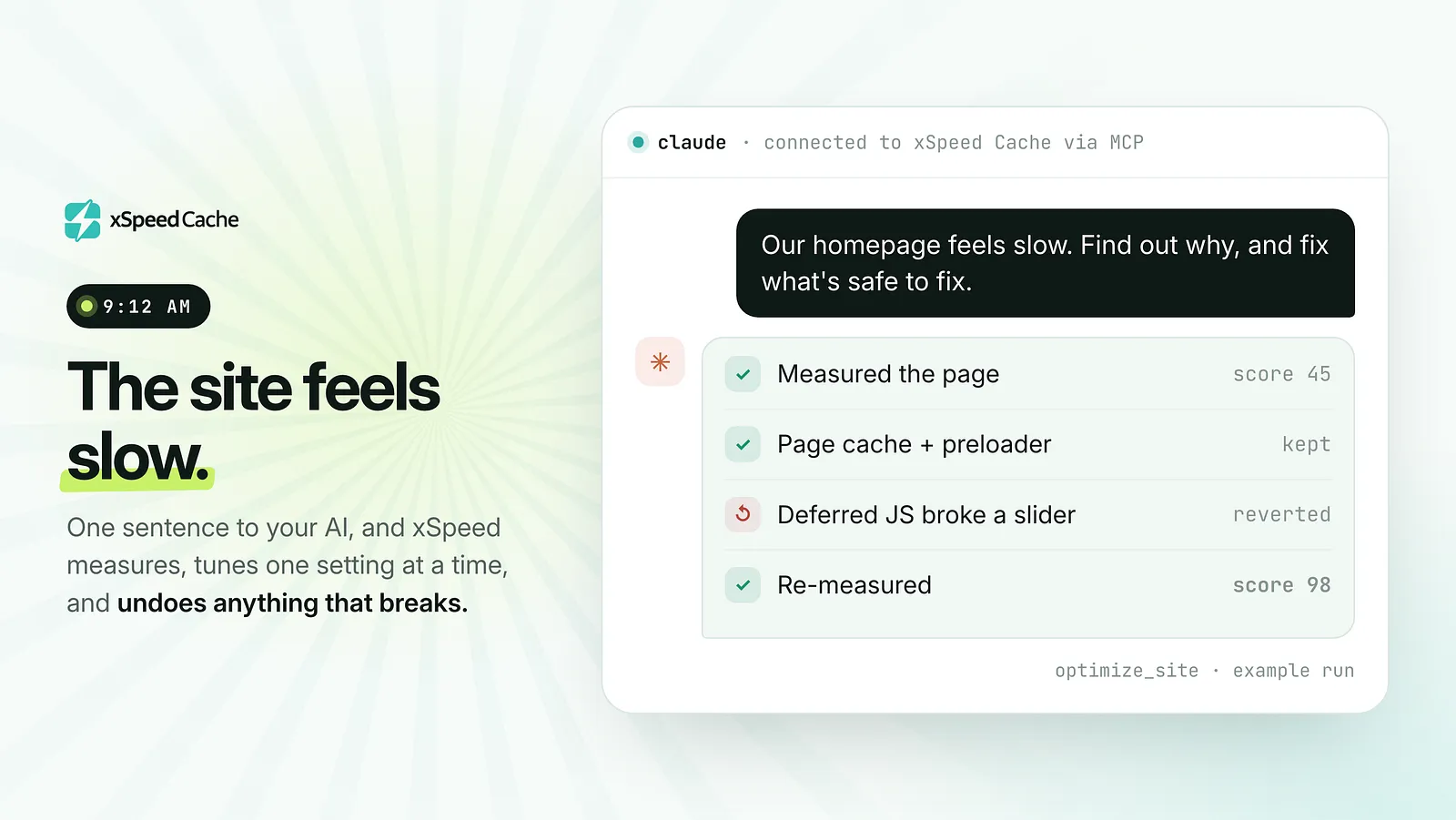
A client email lands before your coffee does. No details, just “the homepage feels slow today.”
The old routine is a speed test, a guess, a settings change, another test. Instead, you open your assistant and type:
Our homepage feels slow. Find out why, and fix what’s safe to fix.
Here’s what happens behind that sentence. The assistant runs a benchmark first, so it knows where it’s starting from. Then it calls optimize_site, the tool that does the actual tuning, and this is the part worth slowing down for:
-
it applies recommended settings one at a time.
-
after each change, it re-checks the page.
-
if a change makes things slower or breaks something, it undoes it.
When it’s done, it tells you three things: what it applied, what it rolled back and why, and what it couldn’t fix. That last list matters. Things like a heavy page, images hotlinked from another site, or an enormous DOM are problems a plugin can’t solve on your behalf, and xSpeed says so instead of claiming a win it didn’t make.
A page scoring 45 came back at 98, with Largest Contentful Paint dropping from 4.1s to 0.9s. Your numbers will depend on your site. The point isn’t the number; it’s that you never had to decide which of twenty toggles to try first.
Why it’s safe: the assistant isn’t guessing and hoping. Every change is measured, and anything that makes the site worse gets reverted automatically.
11:40 am: “I just fixed a typo on the pricing page.”
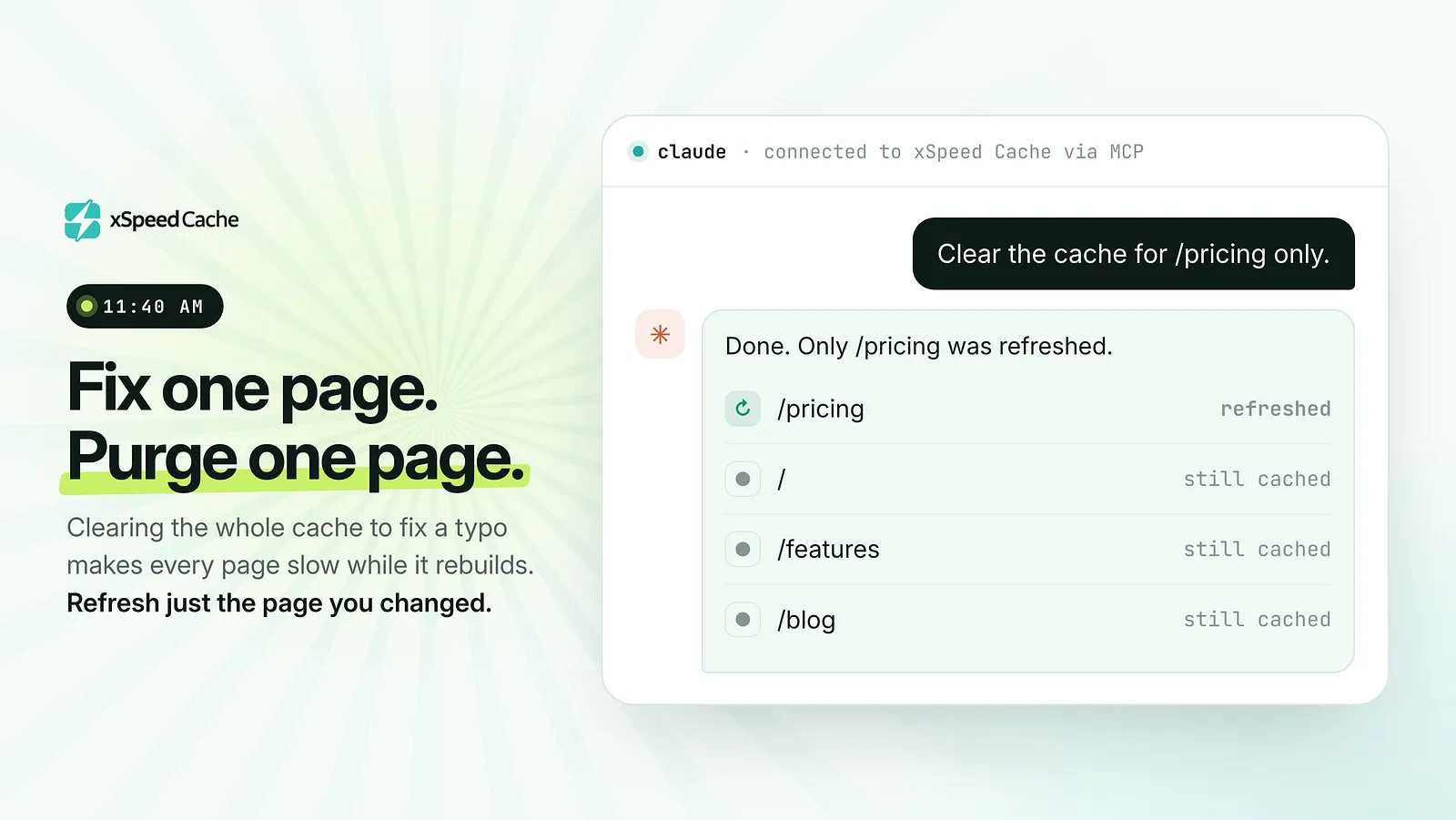
A small edit, but the old version is still cached. Visitors are seeing yesterday’s price.
The blunt fix is purging the whole cache. That works, but it means every visitor for the next while hits the slow, uncached version of every page while the cache rebuilds. So instead:
Clear the cache for /pricing only.
One tool call, purge_url, and only that page is refreshed. Everything else stays fast.
(xSpeed already does this on its own when you publish or update a post, and it also clears the pages that list that post, like your blog index. The assistant is for the edits that happen outside the editor.)
Why it matters: caching is only a speed win if purging is precise. Clearing everything to fix one page is how sites end up slow right after “fixing” something.
2:05 pm: “Why is our LCP still bad on mobile?”
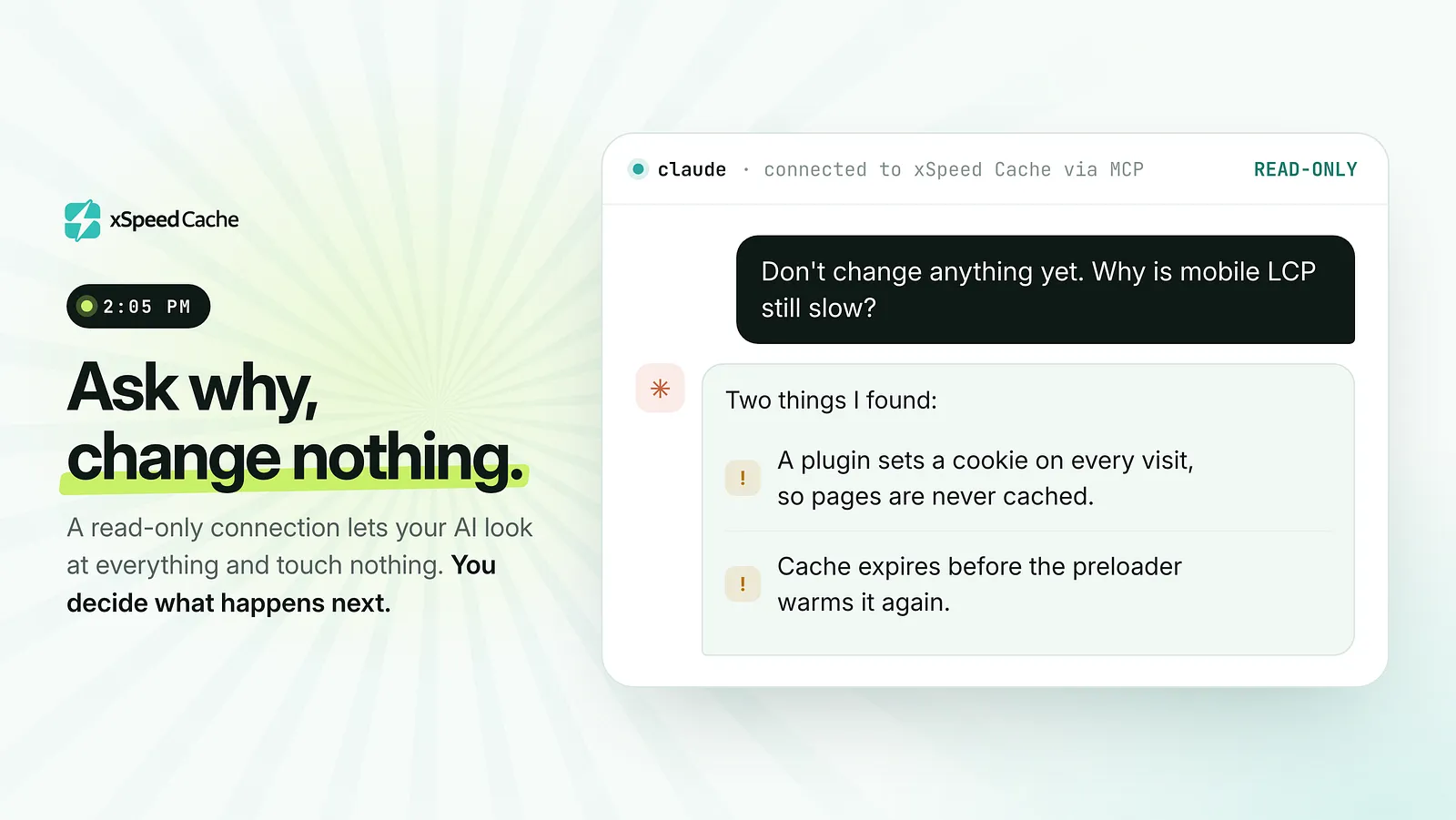
Sometimes you don’t want anything changed. You want to understand.
Don’t change anything yet. Why is mobile LCP still slow?
The assistant reads the site’s health instead of touching settings. It can run xSpeed’s built-in scan, check whether caching is actually working, and look for the quiet problems that are hard to spot by hand. Two real examples of what xSpeed checks for:
-
A plugin setting a cookie on every visitor, which silently stops pages from being cached at all. xSpeed detects this and names the plugin responsible.
-
A cache lifetime shorter than the preloader interval, which means pages expire before they’re ever warmed, so some visitors always get the slow version.
You get the answer in plain English, and you decide what happens next.
Why it’s safe: you can connect an assistant as read-only. It can look at everything and change nothing, and read-only connections stay read-only.
4:30 pm: “Do the same on the other client sites.”
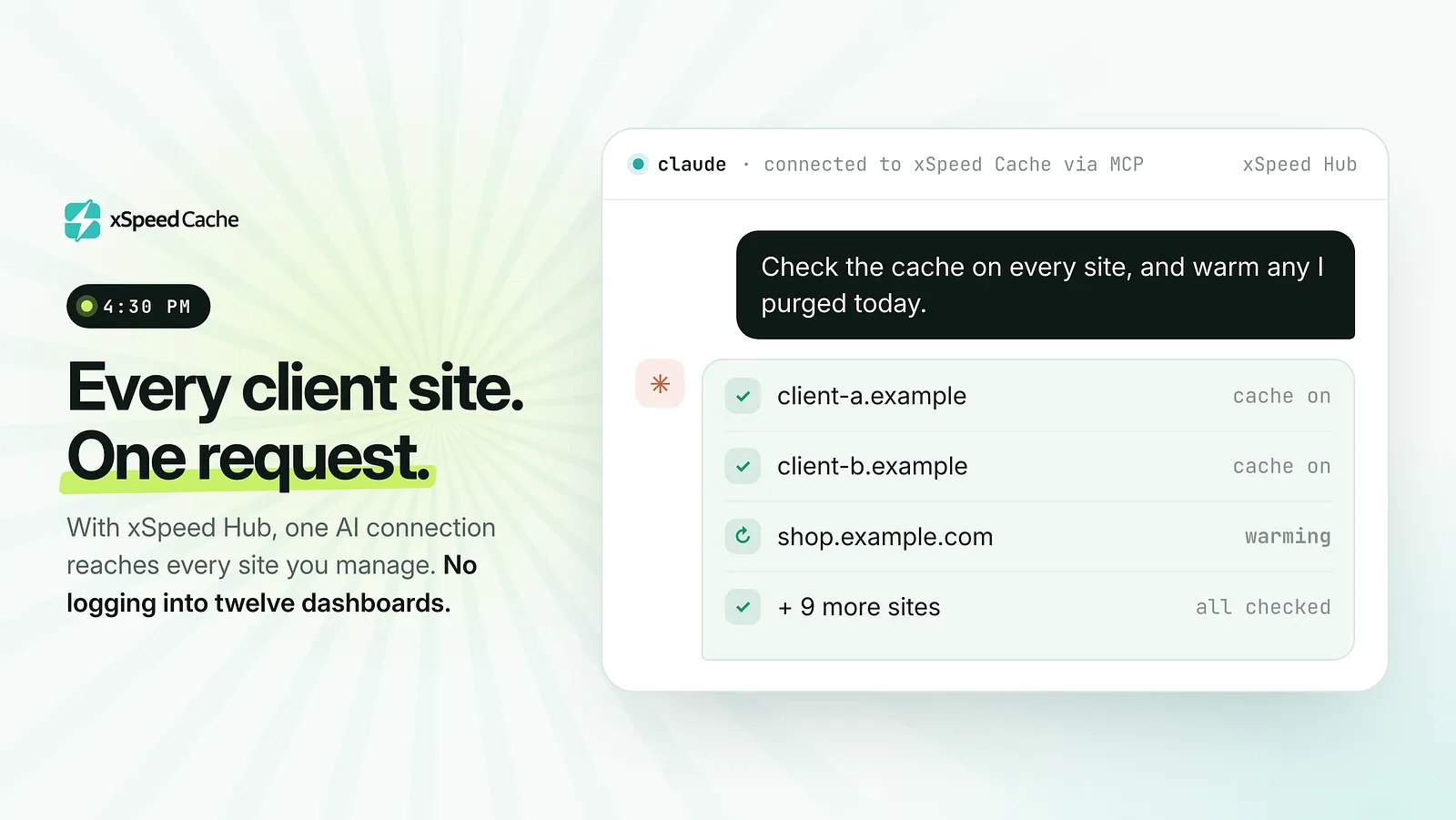
This morning’s fix worked. Now you remember you look after twelve more sites, and three of them have the same theme.
This is where most workflows fall apart: twelve logins, twelve dashboards, twelve chances to forget one. With xSpeed Hub, each site is linked to a free xspeedcache.com account, and one AI connection reaches all of them.
Check the cache status on every site, and warm the cache on any site I purged today.
Same conversation, same assistant, every site at once. No tab juggling.
Why it matters: agencies don’t have one slow site. They have a slow process. Hub turns “log into each site” into one request.
5:50 pm: “Clean up the database, but show me first.”
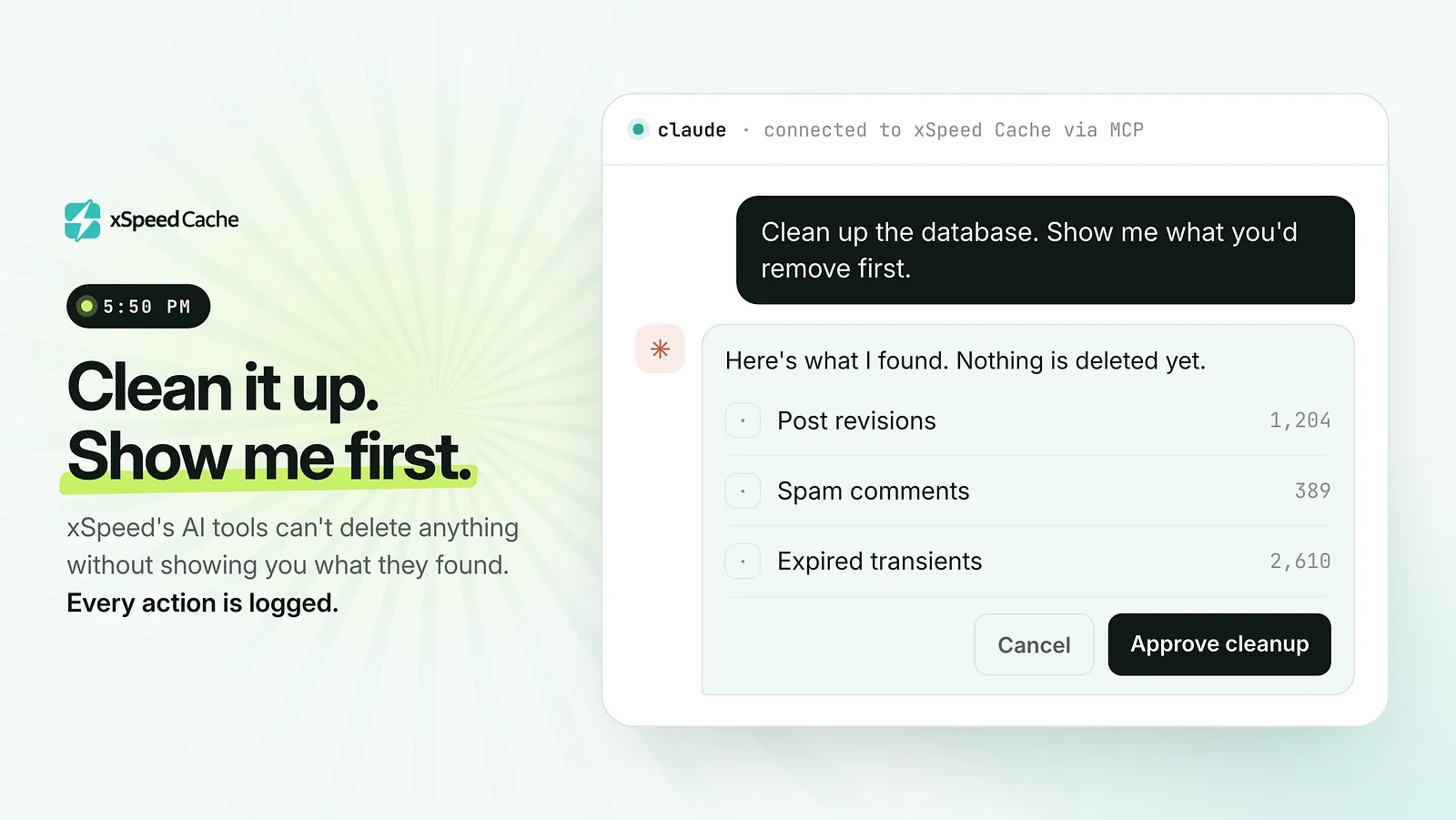
Last job of the day. The database has years of post revisions, spam comments, and expired temporary data. Cleaning it helps, but “delete things” is exactly the kind of instruction you don’t want an AI to take too literally.
Clean up the database. Show me what you’d remove before you remove it.
xSpeed’s AI tools are built for this moment. The assistant scans first and shows you what it found: this many revisions, this much spam, these expired transients. Nothing is deleted until you’ve seen the list. That isn’t a polite convention the assistant happens to follow; the plugin’s AI tools can’t delete content without showing you what they found first.
And later, if you ever wonder what the assistant did this week, there’s an activity log that records every AI tool call and whether it changed anything.
Why it’s safe: destructive actions need your eyes first, and every action leaves a trail you can review.
What this adds up to
None of this replaces the dashboard. Every setting the assistant touched is still there, and you can change any of it by hand.
What goes away is the clicking: the hunting through tabs, the guessing which toggle to try, the logging into site after site. The control stays with you. The assistant measures before it changes, reverts what breaks, asks before it deletes, and writes down everything it did.
That’s the real shift. Not “AI makes your site fast,” but your site now takes instructions, and it’s careful about how it follows them.
Trying it yourself
-
Install xSpeed Cache on your WordPress site. The free plugin includes the page cache, minification, lazy loading, Redis/Memcached, CDN and Cloudflare support, database cleanup, and the MCP server.
-
Run the setup wizard. Three steps, about two minutes: it checks your environment, you pick a starting preset (Conservative, Balanced, or Aggressive), and caching is on.
-
Connect your assistant. Open the AI & agents screen, connect Claude or any MCP client over OAuth, and choose what it’s allowed to do. Read-only is a good place to start.
-
Ask it something small. What’s my cache status? is a fine first question.
Then, the next time a client emails “the site feels slow”, try answering with a sentence instead of an afternoon.
Get started: xspeedcache.com
First published on Medium Read it there